Why I Run My Own Network in My Girlfriend's Apartment
Plugged into a managed apartment network and could see other people's devices. A $50 router, OpenWrt, and encrypted DNS later, we have a private network with gigabit speeds and full control.
A $50 router and a short setup gave us a private network, encrypted DNS, gigabit wired speeds, and full control over our internet in a managed apartment building. Here's why we did it and how it works.
My girlfriend lives in a newer apartment building. Honestly, it's pretty well done. The building provides Ruckus access points in each room, and they're quite nice. But you have to log in with a username and password, and based on where it's placed, it doesn't really reach into her bed. There are specific dead spots. I actually reached out to the building's outsourced tech support to ask them to change the Wi-Fi channels so we'd stop dropping connections in the bedroom. They never replied. They get paid to come in once and maybe once a year after that.
Now in her bedroom, there's an ethernet port in the wall. But when you plug into it directly, you can see other network shared devices from other people in the building. She experienced that firsthand before we put everything behind a router. She likes her music and has a HomePod, and other people in the building would somehow connect to it and play their music through her speaker. That went on until we figured out we needed to set up authentication on it.
We had already gotten a TP-Link EAP245 access point earlier because it was the best our local Microcenter had. We plugged it into that ethernet port, but it didn't really solve the problem. All we were doing was Wi-Fi-ing the ethernet port. There's only one port in the wall, so you have to choose between plugging in the gaming PC or the access point. You can't have both. And either way, you're still plugging directly into the apartment's shared network. It's a big building in the city with a lot of people on the same infrastructure, and you just don't know what's going on behind the scenes.
On top of that, we'd get lag when she'd try to stream her games, because the traffic had to go all the way through the building's router. There were occasional moments of weird lag or brief drops in connection, that sort of thing.
At first I was thinking about just getting a cheap unmanaged switch, because all we really needed was more ports. But then I realized, no, obviously we need a router here. Might as well isolate our apartment and give us our own private network. Why not? The cost of these routers isn't that much more than a switch, and it does a lot more.
So we bought a Cudy WR3000. Why that one? Because the manufacturer actually supports people putting OpenWrt on it and even has a page on their website for it. I did a deep dive comparing all the top listings on Amazon and everything Microcenter had in stock. The router that always pops up in that price range is the TP-Link ER605 v2, but they make it such a pain in the ass to put OpenWrt on it. They fight you at every step. Every firmware update seems to lock you out more and more. They went so far as to disable SSH if it connects to the internet. It's just absolutely hostile. It's not your router. And TP-Link is known for vulnerabilities. I can almost guarantee you there's backdoors on those devices.
What is OpenWrt and why does it matter?
OpenWrt is an open-source operating system for routers. Most consumer routers run the manufacturer's firmware, which is often bloated, rarely updated, and sometimes phones home with your data. OpenWrt replaces that with a clean, transparent, community-maintained system. You get full control — firewall rules, DNS settings, VPN support, package management. It's the difference between renting a locked-down device and actually owning it. Not every router supports it, which is why the Cudy WR3000 was an easy choice — the manufacturer actively supports the OpenWrt community.
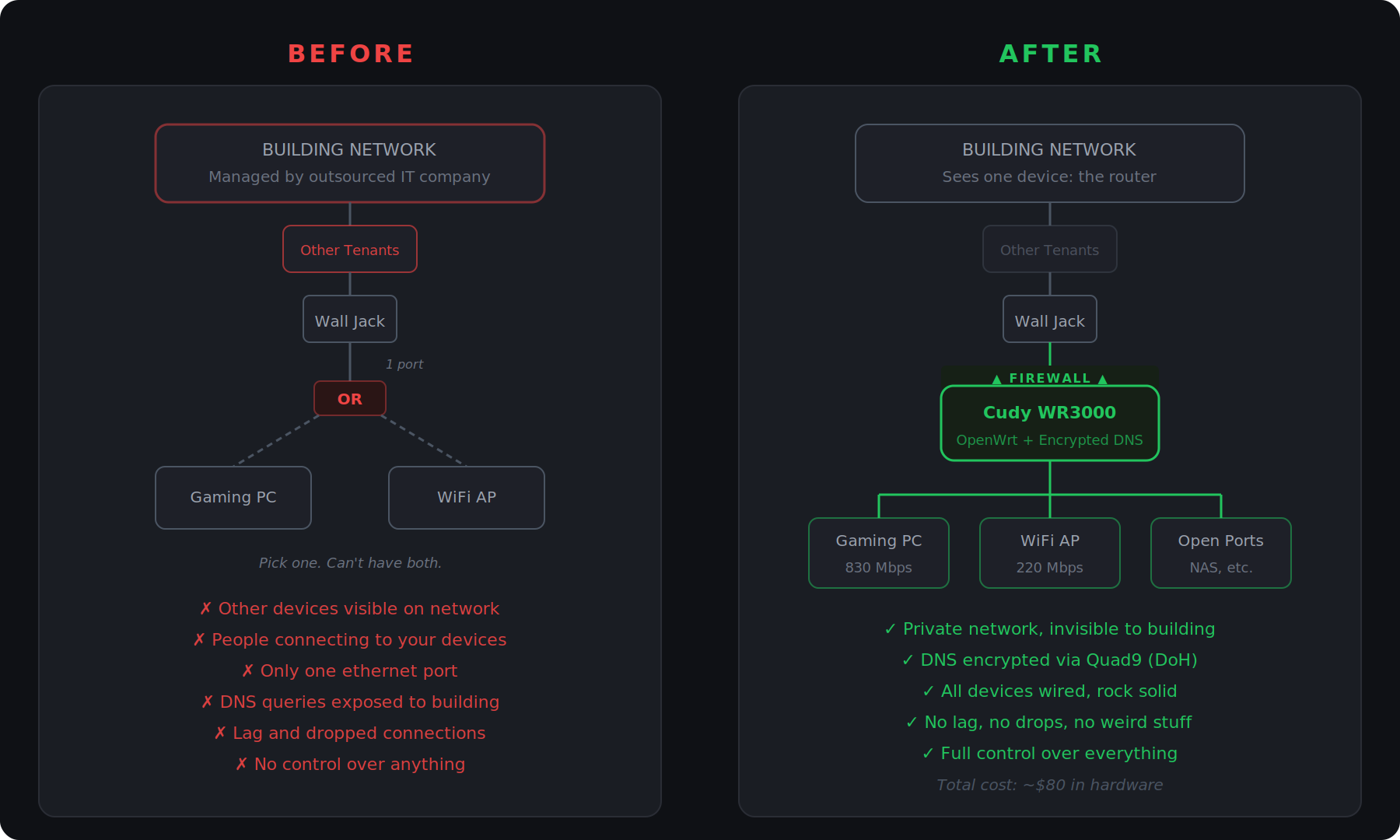
Before: everything on the building's shared network. After: our own private network behind a $50 router.
The difference was immediate. The gaming PC went from dealing with shared building infrastructure to pulling 830 Mbps. Game streaming with Steam Link got way faster with lower latency and no weird stutters.
The Wi-Fi took more work though. I wrote about that here. I tried every channel at nearly every width before finally settling on 40 MHz. In a building where every single room has its own access point, there's never going to be a perfect channel. But after a lot of testing, we found the best option and it's been solid since.
And it's not just about the speeds. My girlfriend works in healthcare. She has to remote into work systems, take Zoom calls, and do professional stuff from home. Flaky connections are frustrating no matter what, but when you're doing professional work and your connection keeps dropping, or your video downgrades to that pixely resolution mid-call, it's a different level of frustrating. Now when she's working from home, it's rock solid. When she's streaming a show on the couch, it just works. When we're downloading a game, it takes minutes instead of hours. And if we're gaming in bed and the Wi-Fi acts up for whatever reason, we just plug in with an ethernet cable and a USB-C adapter. Damn near gigabit speeds, instantly.
Beyond the performance, there's the privacy side. The building now sees one device on their network — just the router. Everything else in our room is essentially invisible to them. We're in our own little LAN bubble. Anything that goes out is standard encrypted website traffic or VPN tunnels like Tailscale. Private and secure on the inside.
But there was still one gap I hadn't dealt with.
One day I was updating the router firmware, just making sure everything was current, and I started looking into the DNS situation. Turns out all our DNS queries were still going out completely unencrypted to whatever resolver the building assigns. So even though our network was private and our web traffic was encrypted, anyone in the chain could still see every domain we were visiting.
What is DNS and why should I care?
DNS is like a phone book for the internet. When you type youtube.com, your device asks a DNS server "what's the IP address for that?" and the server tells it where to go. By default, your internet provider handles this. The problem is those lookups happen in plain text. Anyone between you and the DNS server — your ISP, your building's network, a government agency — can see every domain you look up. They can't see the content (HTTPS handles that), but they see the destinations. Encrypted DNS wraps those lookups in encryption so nobody in the middle can read them.
To be honest, I don't have any real problems with this building or their IT. It's a well-run place. But this isn't really about them specifically. It's about the infrastructure itself. Unencrypted DNS is getting logged and sold across the industry. That's just how it works. Even when you opt out, it's probably still happening. But at least you can make it harder for them.
For people who don't fully understand what this means: every website you go to — google.com, YouTube, whatever — that domain name has to be looked up before your device can connect to it. By default, those lookups go out in plain text for anyone in the chain to see. If you're using your internet provider's DNS, like Spectrum or Comcast, they can see every domain you visit. They may not see the actual page you're on or the specific video you're watching, because HTTPS encrypts the content itself. But they see every domain. And look, the technicians and support people at these companies are good, honest people. It's the executives and decision-makers setting policy who are the problem. These are the same companies that took billions in government subsidies to upgrade infrastructure and just pocketed it.
So I set up DNS-over-HTTPS using Quad9. Quad9 is a Swiss non-profit with a strict no-logging policy and built-in malware blocking. They're recommended by Privacy Guides, which is one of the more trustworthy sources for this kind of thing. I considered Cloudflare, which is consistently the fastest public DNS resolver, but they already handle a massive percentage of internet traffic and they do log queries for 24 hours. Why give them even more? Mullvad DNS would be ideal from a pure privacy standpoint since they claim zero logging, but their servers seem to be overseas. I was getting 300+ millisecond response times and occasional weirdness, whereas Quad9 resolves in under 30 milliseconds with no issues. Fast, private, and non-profit. Easy choice.
For anyone worried about performance — DNS latency barely matters for things like gaming. Those lookups only happen when you initially connect to a server or start a match. Once you're in, it's direct IP communication. It's not like every time you shoot a bullet there's a DNS lookup happening. So there's really no reason not to route your queries through a provider that's at least trying not to log everything you do.
DoH vs DoT — what's the difference?
DNS-over-HTTPS (DoH) sends DNS queries inside normal HTTPS traffic on port 443, the same port every website uses. DNS-over-TLS (DoT) uses its own dedicated port, 853. Both encrypt your queries. The practical difference: DoT can be identified and blocked by a network administrator because it uses a unique port. DoH is indistinguishable from regular web browsing. If you're on someone else's network — an apartment building, an office, a coffee shop — DoH is the better choice because it can't be blocked without breaking all HTTPS traffic.
To be clear, encrypted DNS doesn't hide everything. It hides which domains you visit. HTTPS, which most websites already use, hides the actual content on those sites. And if you want to hide the destination IP addresses too, that's what a VPN is for. Each layer covers something different, but encrypted DNS is the easiest win — ten minutes of setup and you've closed one of the biggest gaps most people don't even know is open.
With all of that in place: the router, the private network, the encrypted DNS, day to day, everything just works. The gaming PC has a rock solid gigabit connection. Work from home calls don't buffer. Streaming doesn't stutter. We have our own private network that the building can't see into, and we don't have to trust anybody with our traffic. This building and their management is phenomenal, but we don't have to trust them if we don't want to. And we don't.
And now we have a real foundation. If we ever want to self-host something, set up a NAS, run a VPN back home, or stop paying for some subscription by hosting an alternative ourselves, it's all possible. It's done properly. It's not just plugging into the wall where everybody can see your computer.
The whole thing cost about $80. $50 for the router, $20 on cables, and $10 for an ethernet adapter. The access point was the most expensive piece, and we already had it. I honestly can't think of any downside besides the small one-time cost and a couple hours of initial setup. Everything since has been fantastic.
Take matters into your own hands.
Subscribe to my newsletter
Subscribe to my newsletter to get the latest updates and news
Why 80 MHz WiFi Doesn't Work in Apartments (And What To Use Instead)
We tested 80 MHz and 40 MHz WiFi in a dense apartment building. The difference was 16 Mbps vs 220 Mbps on the same hardware. Here's why wider channels fail in apartments, the tools to diagnose it, and exactly how to fix it.







Member discussion